

In this article we are going to look at a lesser known but very powerful field type in ServiceNow called the Name Value Pair field type. Documentation
Most of us are very familiar with standard field types like string, choice, reference, or even JSON fields in integrations. But as applications become more configurable and dynamic( as they often do), we often need a way to store flexible data without constantly changing the table schema. That is exactly where the Name Value Pair field type fits in.
So what is a Name Value Pair field?
At a high level, it allows you to store multiple key value pairs inside a single field.
Think of it as a lightweight structured data container that lives inside one field.
Now let us talk briefly about how this is stored in the back-end.
Even though the field behaves like a structured object in scripts, it is stored as a serialised JSON string in the database. If you look at the dictionary entry, you will see that the internal type is name_value_pair, but at the database level it is still a string column.
ServiceNow handles the serialisation and serialisation for you automatically.
From a scripting perspective, this is where things get interesting. When you access a Name Value Pair field in server side JavaScript, ServiceNow exposes it as a JavaScript object. You can read values using dot notation or bracket notation, and you can also set or update individual keys without worrying about manually parsing JSON.
Imagine you are building a custom ServiceNow application that integrates with multiple external systems. Each integration might require different parameters such as endpoint URLs, API versions, timeout values, feature flags, or optional headers.
If you model this using traditional fields, you end up creating many columns, some of which are only relevant for specific records. Over time, the table becomes cluttered and difficult to maintain.
With a Name Value Pair field, you can store all these optional or dynamic settings in one place.
For example, one record might store:
Another record might store:
All of this can live in the same field without changing the table structure.
Let’s add this field to Incident table and go through the process.
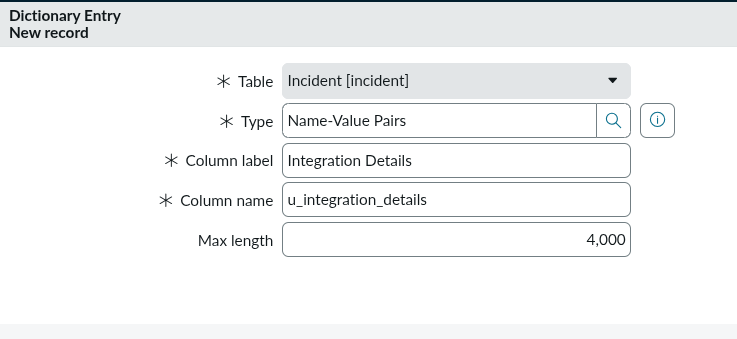
Step 1 : Open Incident table configuration, and add a new column
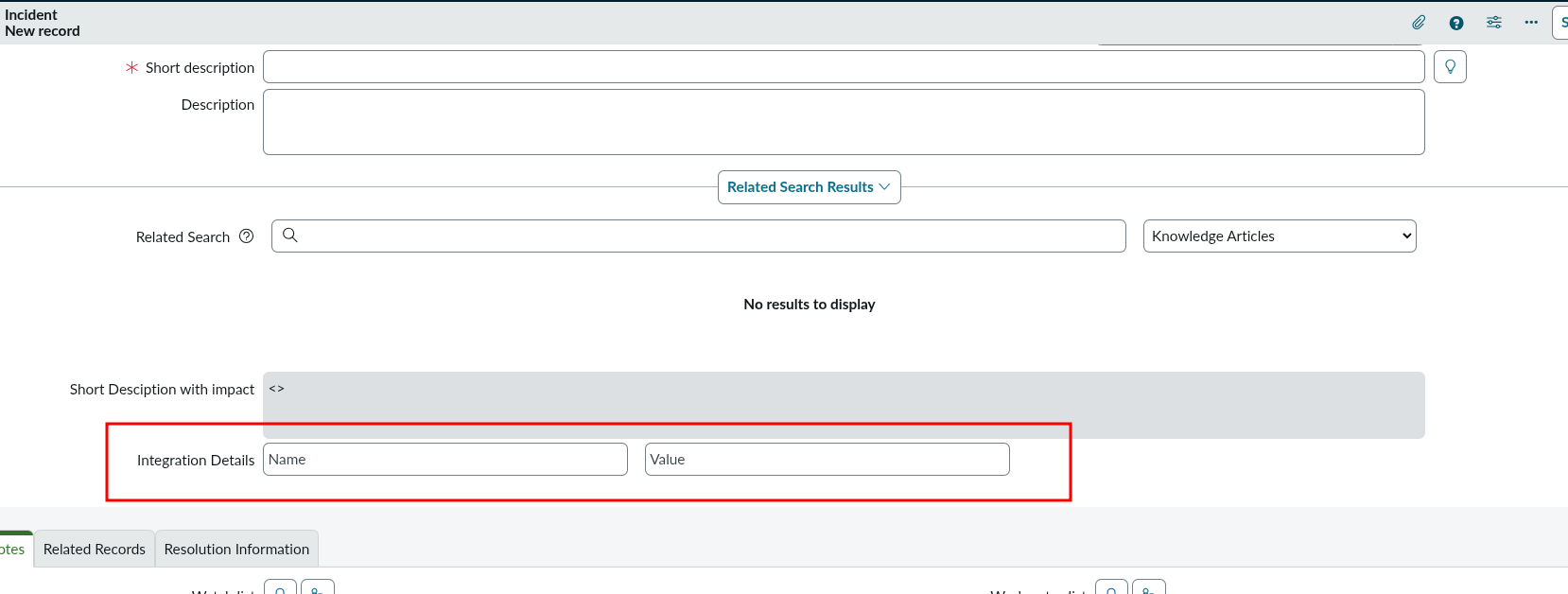
Step 2: Open form view to see this in action
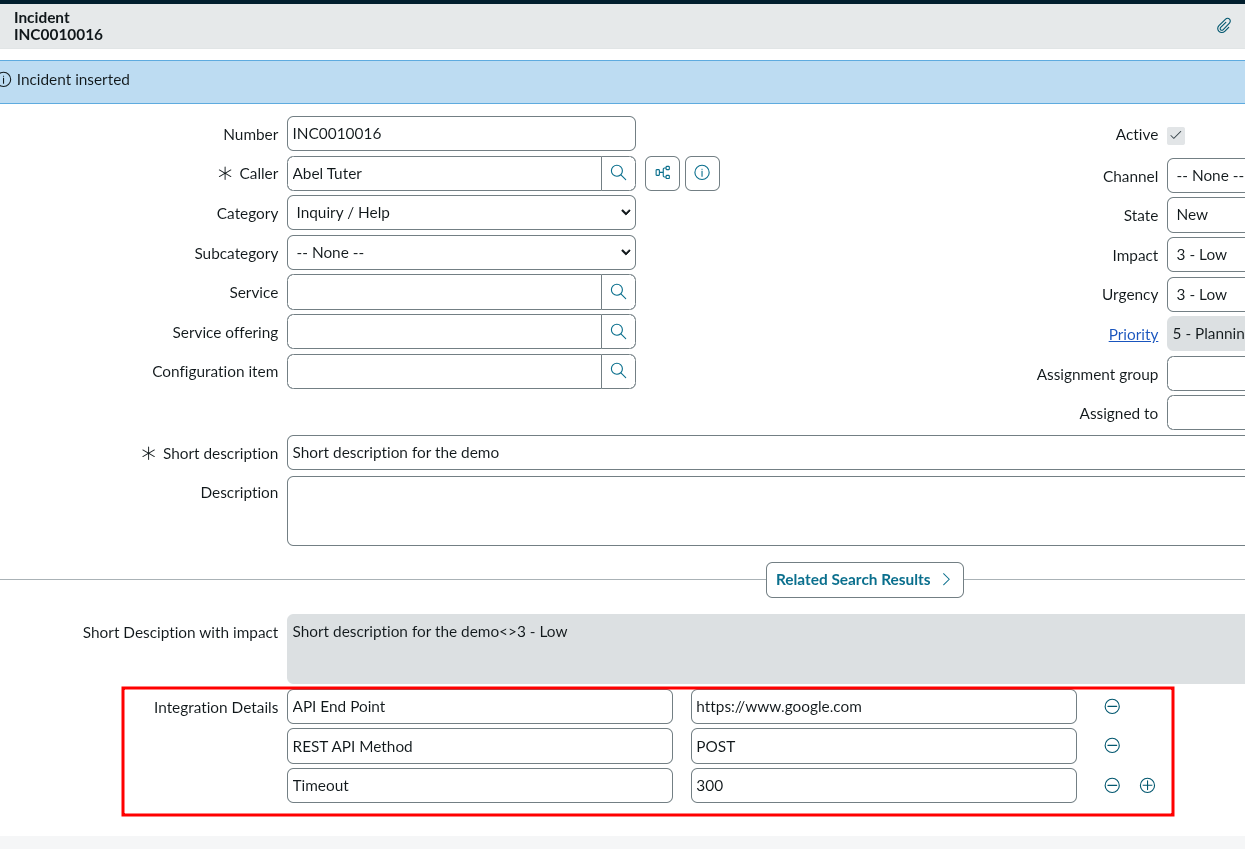
Step 3: Let’s add some values to this and save the form
Step 4: Check the XML of the record to see how SN Stores the data

Now we have created a new field and seen how it looks like in core UI and how ServiceNow stores data technically in the database.
Here we would try and access/modify/create Name-Value pair values from background script.
var incidentGR = new GlideRecord("incident");


if (incidentGR.get("number","INC0010016")) {
	gs.info("Showing JSON String saved : " + incidentGR.u_integration_details);
}

/*response */

*** Script: Showing JSON String saved : {"API End Point":"https://www.google.com","REST API Method":"POST","Timeout":"300"}
What we see is that ServiceNow stores values as string. A serialised JSON string containing all pairs.
var incidentGR = new GlideRecord("incident");


if (incidentGR.get("number","INC0010016")) {

	incidentGR.u_integration_details['REST API Method'] = "PATCH";
	incidentGR.update();

	// retrieving the value again
	gs.info(JSON.stringify(incidentGR.u_integration_details,"",5));
}

/* output */

*** Script: {
     "API End Point": "https://www.google.com",
     "REST API Method": "PATCH",
     "Timeout": "300"
}
Here we observe two things
update method.That’s all Folks. You can also this as a YouTube video